Manage sessions
TotalView saves the settings for each of your previously-entered debugging sessions, available in the Manage Sessions window of the Session Editor. Here, you can edit, duplicate or delete sessions as well as start a session and create new sessions.
You can also edit and create new sessions from any session window. See Edit a previous session.
To access the Manage Sessions window, use one of the following methods:
-
In the Recent Sessions area of the Start Page, select View All.
-
From the main menu, select File > Manage Sessions.
The Manage Sessions window opens, listing all the sessions you have created, grouped as follows:
-
Attach
-
Program
-
Parallel
-
Python
-
Core or Replay Recording
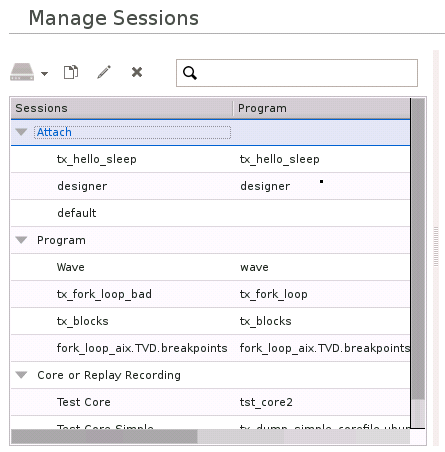
From the Manage Session window, you can do the following:
View information about a session
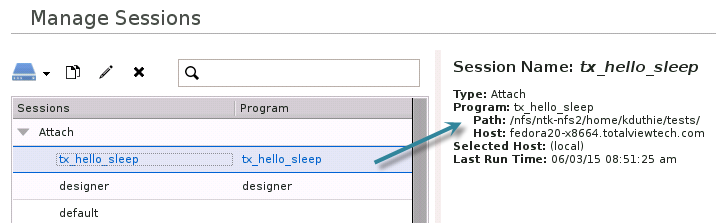
The Manage Sessions window can show you information about each listed session.
To view a session's information, select the session. The information is shown in the window.
Search for a session
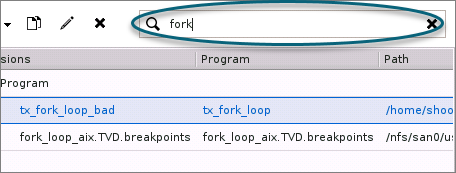
If you have created many sessions, the list shown in the Manage Sessions window can be quite long. When needed, you can use the window's search function to locate the session you want.
To find a session using the search functionality:
-
Enter a keyword or partial name in the search field.
-
Review the list of matching sessions.
-
Select a session from the search result list to view it's details to determine if you want to complete any other actions for the session.
Rename a session
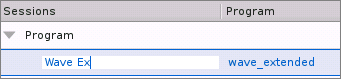
You can also rename your sessions. This can be beneficial when you need more differentiation when your list of previous sessions grows larger.
To rename session, double-click the session and enter the new name.
Load a session
You can also load a session from the Session Manager window.
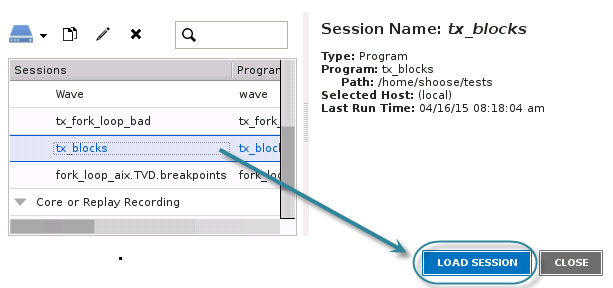
To load a session, select the session and then select LOAD SESSION. This immediately opens that session in TotalView.
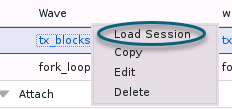
You can also right-click the session and select Load Session in the context menu.
Edit a session's configuration settings
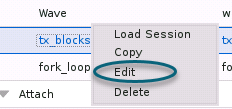
To edit a session's configuration settings, right-click the session and select Edit in the context menu. The Session Editor opens, where you can edit the settings.
Alternatively, select the session and then select  on the Session Manager toolbar.
Duplicate a session
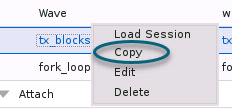
To duplicate a session, right-click the session and select Copy in the context menu. A duplicate version of the session is created and named using the following convention: <Session Name>Copy. You can subsequently right-click the copy and rename, edit, or load it.
Alternatively, select the session and then select  on the Session Manager toolbar.
Delete a session
To delete a session, right-click the session and select Delete in the context menu.
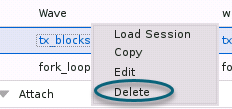
Alternatively, select the session and then select  on the Session Manager toolbar.
Create a new debugging session
To create a new debugging session, select  on the Session Manager toolbar.
-
When you select
 , the Session Editor opens immediately to the Program Session window, where you can configure a new session. See Debug a program.
-
When you select
 , you can select one of the following to open the Session Editor to the appropriate window to configure that type of session:
-
Create a new Program session (see Debug a program)
-
Create a new Python Program session (see Debug a Python program)
-
Setup an Attach session (See Attach to a running program)
-
Create a session to load a Core or Replay Recording file (Debug a core or replay recording file)
-