Debug a Program
To configure a new debugging session, select Debug a Program to launch the Program Session dialog.
Figure 6. Program Session dialog
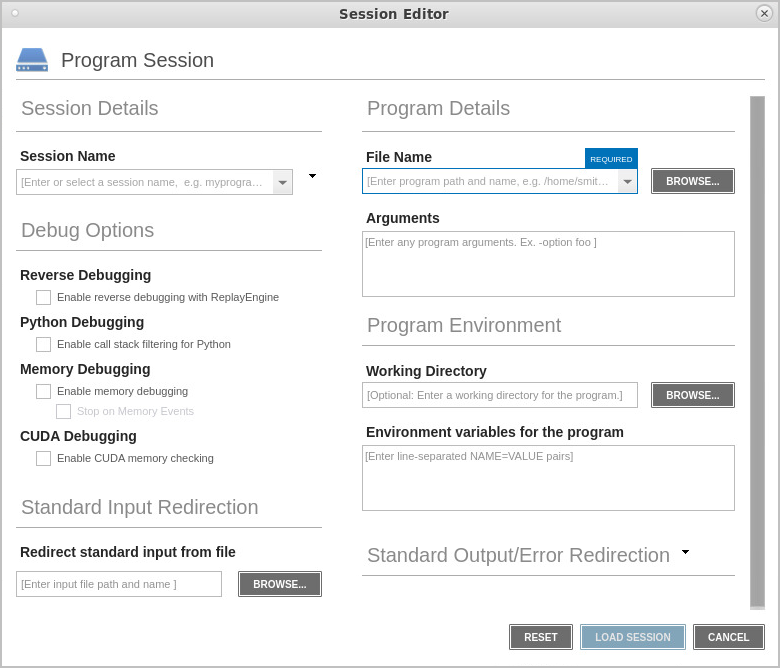
1. Enter a session name in the Session Name text box.
Note that any previously entered sessions of the same type are available from the Session Name dropdown box. See Editing a Previous Session.
2. Enter the name of your program in the File Name box or press Browse to browse to and select the file. You can enter a full or relative path name. If you have previously entered programs here, they will appear in a dropdown list.
If you enter a file name and the UI cannot find it, it displays the path in red; however, TotalView searches for it in the list of directories listed in your PATH environment variable.
3. (Optional) Add any custom configurations or options:
Program arguments: Enter any program arguments into the Arguments field.
Because you are loading the program from within TotalView, you need to enter the command-line arguments that the program requires.
Debug Options:
For detail, see Debug Options.
Program Environment:
Environment Variables for the Program.
Standard Input and Output: See Standard Input and Output.
4. Click Load Session. The Load Session button is enabled once all required information is entered.