Launch single-process Python programs
You can launch single-process Python programs from both the command line and the Session Editor.
Before you begin, verify that your Python environment meets the requirements in Python debugging supported platforms and requirements.
On this page:
About the TotalView Python wrapper
TotalView uses a Python wrapper program to launch and control Python debugging sessions. The TotalView distribution includes the wrapper program and an MPI interposer shared library, which automatically load the Python debug module into the interpreter.
The wrapper is installed at:
<install-root>/<platform>/bin/tv_python_wrapper
TotalView supports the %tv_python_wrapper% token, which expands to the path of the wrapper in the TotalView distribution. Use this token when specifying the program to debug.
Launch a Python program from the command line
-
To launch your Python program in TotalView, run the following command from the command line. Replace
<script.py>with the name of your Python script.totalview -args %tv_python_wrapper% python <script.py>-
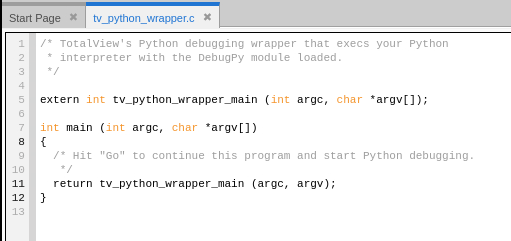
If execution stops and the Source view displays the Python wrapper program (tv_python_wrapper.c), select Go (
 ).
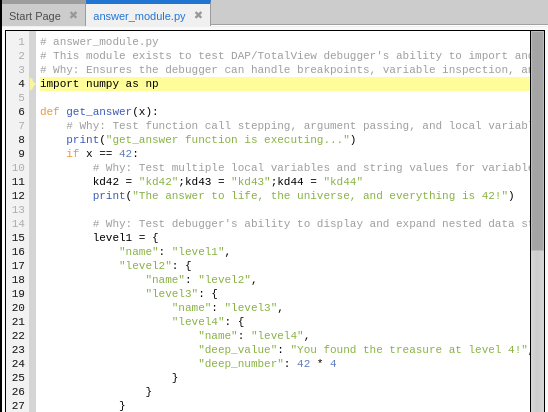
TotalView loads your Python script and stops at the first line of code.

-
-
(Optional) Set any breakpoints you want in your Python code. See Set breakpoints in Python code.
-
Select Go (
) to run your Python script.
Launch a Python program from the Session Editor
-
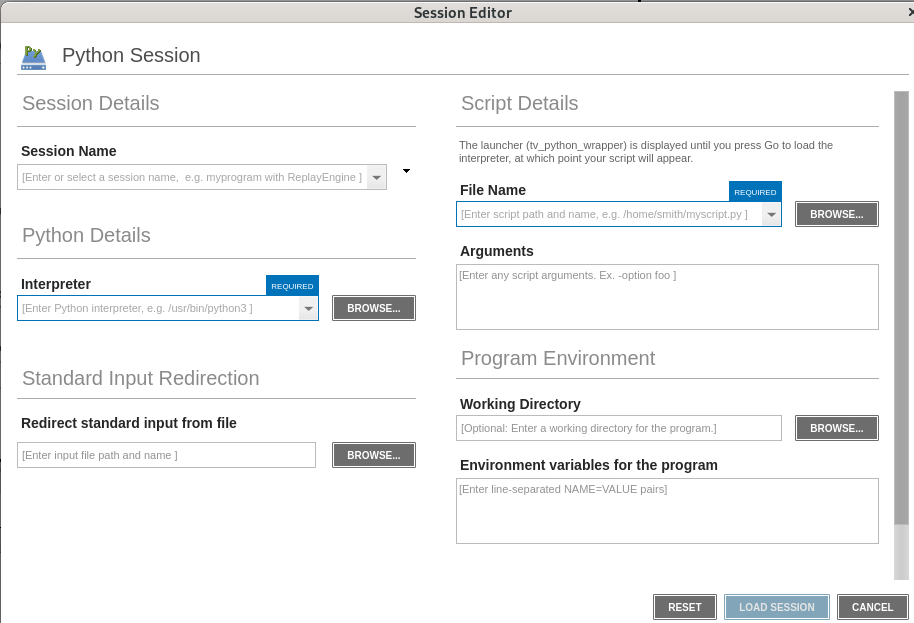
Open the Python Session window of the Session Editor using one of the following methods:
-
Select File > Debug a Python Program.
-
On the Start Page, select Debug a Python Program.
-
-
Enter a name in the Session Name field.
-
In Python Details, enter the path to the Python interpreter, or select Browse to locate and select the interpreter.
The interpreter must be an executable regular file, or a bare name such as
python3that is found on the debugger'sPATH. If you enter a relative path, TotalView resolves it from the session's working directory, if one is set. -
In Script Details, enter the script file name, or select Browse to locate and select the script.
The script must be readable, but it does not need to be executable. Its file name must end in
.pyor.pyw(case-insensitive), or its first line must be a shebang (#!) that identifies Python. -
(Optional) Complete one or more of the following to further configure the session:
-
Enter script arguments in the Arguments field.
-
Set the working directory. For details, see Program Environment.
-
Configure environment variables. For details, see Program Environment.
-
Configure standard input and output/error redirection. For details, see Standard Input and Output.
-
-
Select Load Session.
The Source view displays the Python wrapper program (tv_python_wrapper.c).
-
Select Go (
). The Source view displays the Python script.
-
(Optional) Set any breakpoints you want in the Python code. See Set breakpoints in Python code.
-
Select Go (
) to run the Python script.
Previously used interpreters and scripts are available in their respective field histories. The script history is separate from the file name history in other windows of the Session Editor. The editor does not automatically discover installed interpreters, virtual environments, or conda environments.
The Python wrapper program (tv_python_wrapper.c) is internal and is not stored in the saved session. To learn more, see About the TotalView Python wrapper.
Manage your Python sessions
TotalView saves Python sessions with your other sessions. To edit or reopen a saved session, see Manage sessions, Edit a previous session, or Load a recent session.
You can also modify a Python session's arguments when the session is already loaded, but the interpreter and script are locked and cannot be edited in this scenario. For information, see Modify arguments in an open session.
Resolve launch errors
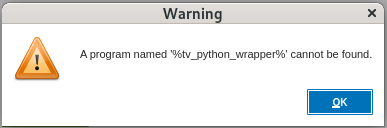
If you encounter the following warning when launching a single-process Python program, use the recommended action to resolve the issue.
Warning: A program named '%tv_python_wrapper%' cannot be found
This warning occurs when launching a single-process Python program using a TotalView version that does not support native Python debugging. To resolve this warning, use a TotalView version that supports native Python debugging.