The Array View
The Array View provides a way to examine array statistics, view array data, and slice arrays for easier analysis.
If the Array View is not open when you launch TotalView, you can open it from Windows > Views > Array View. You can also open it by adding an array to the view. For more information, see Adding Arrays to the Array View.
In this section:
The Array View Toolbar
The Array View toolbar provides information about the array and commands that you can use to select a different array to view, access the array's Configuration Options dialog, and filter the array. Array statistics are displayed by default. For information about additional array data that you can display, see Viewing Array Statistics and Data.
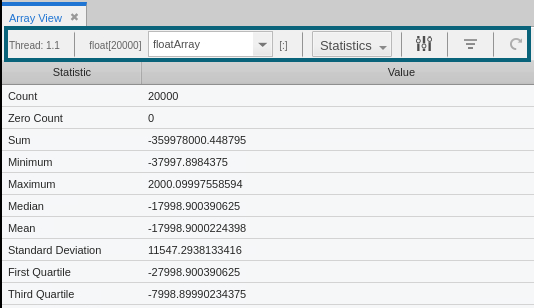
The toolbar displays the following information and options:
-
The thread of focus.
-
Whatever type the array is set to. For example, int[20][20]. This can reflect the original type from when you added the array to the Array View or the edited type that you subsequently specified for the array in the Configuration Options dialog. For more information, see Configuring Arrays.
-
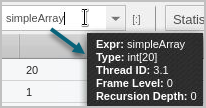
The Array Expression dropdown. When you have added multiple arrays to the view, you can use this dropdown to select the array that you want to examine. When you point to an array name in the dropdown, a tooltip displays information about the array.
-
The array slice and stride (after you have specified these in the Configuration Options dialog).
By default, TotalView displays all elements in the array. For example, [:] for a single-dimension array, [:][:] for a 2D array, and so on. If an array has been sliced, its slice will display in the toolbar.
-
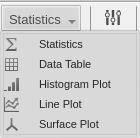
The view dropdown from which you can select the array statistics view or other array data view.
-
The configure button (
 ), which opens the Configuration Options dialog where you can slice arrays and create array filters. See Configuring Arrays.
 -
The filter button (
 ), which toggles a filter on and off after you have configured a filter in the Configuration Options dialog.
 -
The update button (
 ), which refreshes the display after you have advanced your program.