Open additional directories
In addition to viewing the folders and files related to the selected program, you can use the Choose a folder dialog to select an unrelated directory that you want to view in the Folder view.
If you are working in a remote session, make sure the remote connection is active before opening additional directories. See Debugging on a Remote Connection.
This capability is useful when you want to:
-
View related source files that aren't part of the loaded executable
-
Inspect documentation, scripts, or example files alongside program source
-
Compare the loaded source with alternate versions or generated files
-
Work around source‑path or debug‑info mapping issues by browsing to the actual location of the source
To select a new directory for the Folder view:
-
In the Folder view, click
 or the folder path (
 ). Or click File > Open Folder.
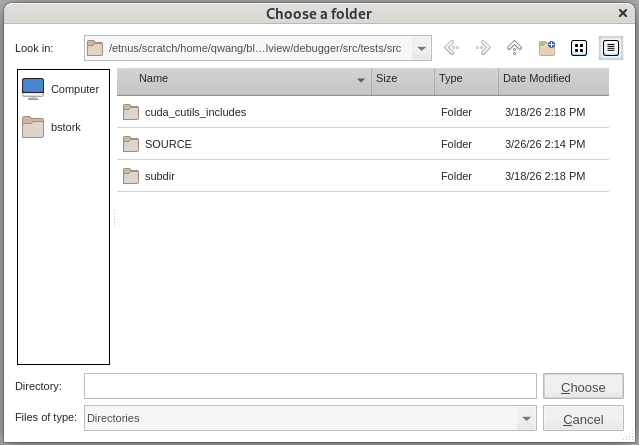
 The Choose a folder dialog opens.
 Access to the Choose a folder dialog is available only after the Folder view has already been populated by loading a program.
 -
Enter or select a path in the Look in list, or browse to the directory that you want.
-
Click Choose.