The Folder view
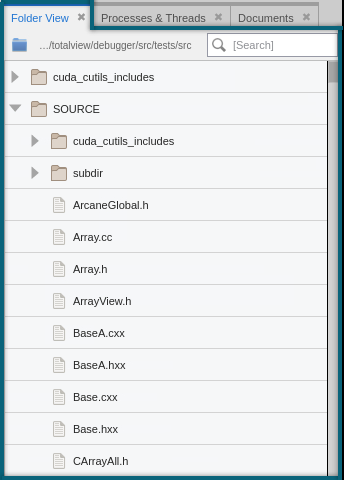
The Folder view provides a method to navigate source files that are part of the loaded executable. After you load a program, TotalView populates the Folder view with the directories and files used by that program, which you can open directly in the Source view. This view is especially useful when you want to explore unfamiliar code, understand a program’s structure, or locate source files without first stopping at a breakpoint or navigating the call stack.
When you are working in a remote session, you must first establish a remote connection before loading a program. To learn more, see Debugging on a Remote Connection.
On this page:
Open the Folder view
To open or close the Folder view, click Window > Views and click Folder View. If the view is empty, load a program to populate the view.
The view updates automatically when you load a different program.
Browse and open program source files
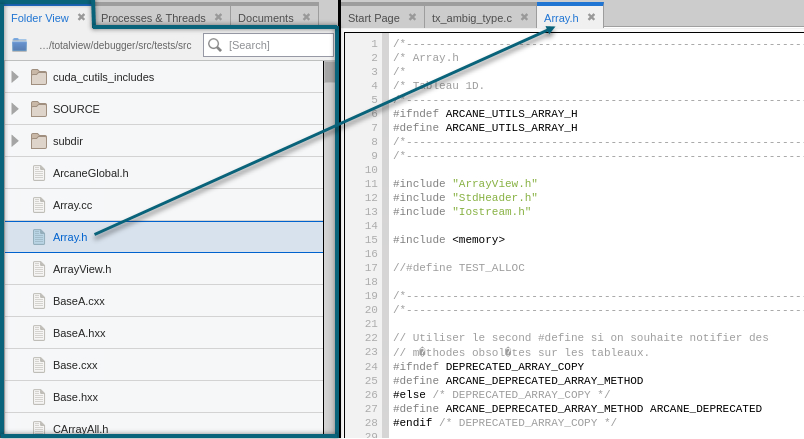
You can browse the folders in the Folder view to examine how a program’s source code is organized. Selecting a file opens it directly in the Source view.
This allows you to:
-
Explore the program’s structure without first hitting a breakpoint
-
Open related source files that aren't currently on the call stack
-
Navigate code by directory and file location rather than by symbol name
This type of navigation is particularly useful when reviewing unfamiliar code, exploring large projects, or working with optimized builds where symbols may be limited.
Open files in the Source view
After the Folder view is populated, you can browse the folders to see how the program’s source code is organized and open files in the Source view.
You can open files using either of the following methods:
-
Single-click: Opens the file in a reusable Source view tab. Subsequent single‑clicked files replace the contents of this tab.
-
Double-click: Opens the file in a new Source view tab that is not reused. Files opened afterward—whether by single‑click or double‑click—open in additional tabs.
How the Folder view tracks the current program
When you have loaded more than one program, the Folder view displays the folders and files for the currently selected program. By default, the view updates automatically when you switch between programs.
To switch the Folder view to a different program, double‑click the program in the Processes & Threads view. The Folder view updates to show the folders and files associated with that program, allowing you to explore each program’s source independently.
If you use the Choose a folder dialog to open a directory that isn't part of the program, the Folder view continues to display that folder even if you switch to another program and then return. In this case, the view doesn't automatically revert to the program’s source folders. To return the Folder view to the program’s folders, close and reopen the program, or use the Choose a folder dialog to browse to and open the program’s source directory. To learn more about using the Choose a folder dialog, see Open additional directories.
In this section: