Debugging on a Remote Connection
From the Start Page, select your remote connection from the Remote Connections dropdown. A popup launches:
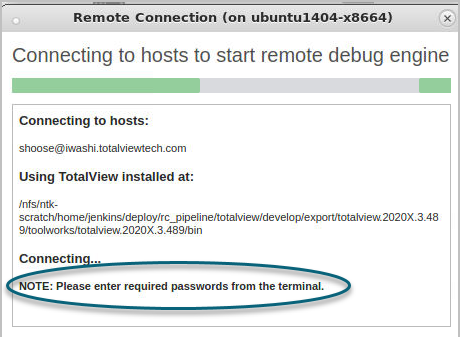
If the remote host requires a password, the dialog prompts you to enter it in the shell from which you launched TotalView.
Running a remote connection will end your existing session; any local variables or open files will close.
If you are in the middle of an active session with files open, TotalView prompts you to ensure your choice.
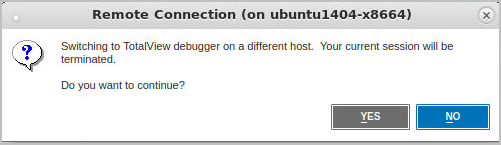
The remote session opens.
Next, choose an existing session or create a new session. To create a new session, use the Browse controls to select a program and working directory on the remote host. These controls allow you to navigate the remote file system to select files and directories instead of manually entering paths.
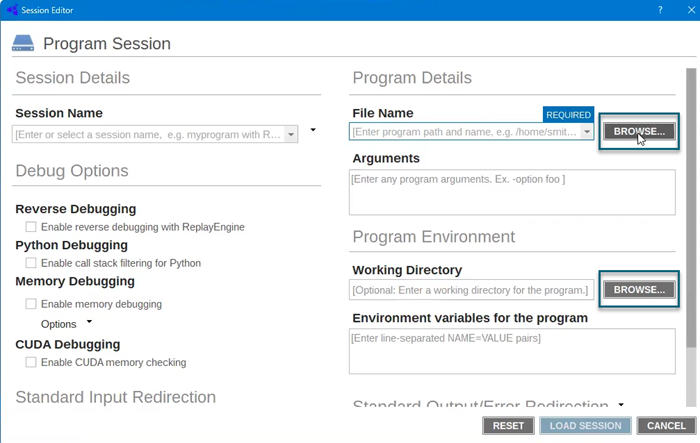
Debug a program in the same way you would if you were running TotalView on your local machine. All debugging tools are available to you, including the ability to browse the remote file system in the Folder view. To learn more about the Folder view, see The Folder view.
Identifying a Remote Debugging Session
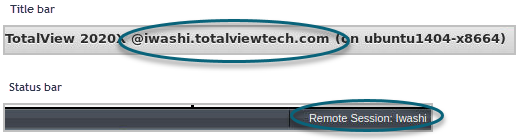
When on a remote connection, two visual cues identify that this is a remote session:
The title bar displays the server’s name.
The status bar displays the descriptive name for your remote connection configuration.
For example, the debugging session below was initiated on ubuntu1404-x8664, and is running TotalView on the server iwashi.totalviewtech.com, based on a connection named “Iwashi:”