Freezing Data
Freezing Data in the Data View prevents TotalView from re-evaluating and updating the selected expression in the view when program execution continues. This can help you examine changes in an expression's data as you step through your program or progress between stopping points in your code.
On this page:
Freezing the Data
You can freeze an expression in the Data View by using one of the following methods:
-
Right-click the expression and then select Freeze Data in the context menu.
-
Select the expression and then click
 on the Data View toolbar.
After you freeze the expression, it is identified in the Data View as frozen, as demonstrated in Figure 58.
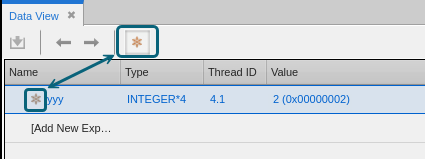
If you dive on a sub-element of the expression and then freeze that sub-element, only the sub-element is frozen. Also, you cannot undive or redive on frozen data, so those "dive" operations become disabled.
Comparing frozen data to non-frozen data
In most cases, you will want to compare frozen data to non-frozen data so that you can examine how the data changes as your program progresses. The easiest way to compare the frozen and unfrozen data is by adding the expression to two different tabs in the Data View.
To compare an expression's frozen and unfrozen data
-
Add an expression to the Data View twice, into separate Data View tabs. For more information about adding an expression to a new data view tab, see Viewing Data in TotalView.
-
Freeze the expression in one tab, but not in the other.
-
Undock one of the Data View tabs from the default pane in the interface so that you can view both Data View tabs at the same time.
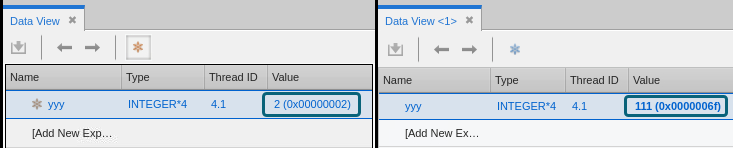
You can subsequently re-dock the undocked tab into the default pane of the interface so that the two tabs are viewed side-by-side in the pane (as demonstrated in Figure 59), or you can leave one or both tabs undocked as floating windows. For more information on Undocking and Docking, see Customizing the Interface.As shown in Figure 59, the two Data View tabs show the same expression; in one tab the expression is frozen and in the other it is not, and the value is the same in both before progressing through the code.
Figure 59. Expression ready for comparison

-
Step through your code or run your program to its next stopping point to compare the expression's data. As shown in Figure 60, the frozen expression's data remains unchanged while the unfrozen expression is re-evaluated and the data is updated.
Figure 60. Expression comparison
Unfreezing the Data
When you unfreeze the data in the data view, TotalView automatically updates the data to the current values for the location where the code has stopped. If desired, you can then re-freeze the expression, and again progress the program to examine how the data again changes.
You can unfreeze the data by using one of the following methods:
-
Right-click the expression and then click Freeze Data to remove the checkmark.
-
Click the expression to select it and then click
 on the Data View toolbar.