Customizing the Interface
On this page:
Preferences
Select the Settings toolbar  to display the Preferences dialog. You can also select File | Preferences. For detail, see Preferences.
Resizing
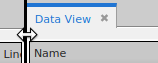
To resize windows, hover your cursor over any dividing line between sections to display a two-way arrow that moves that boundary either up and down, or left and right.
Drawers
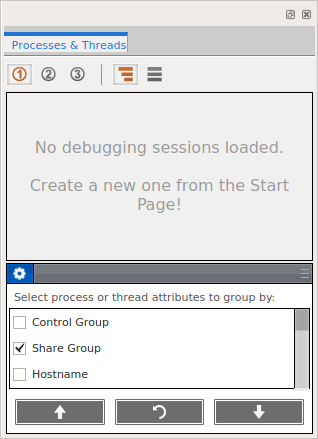
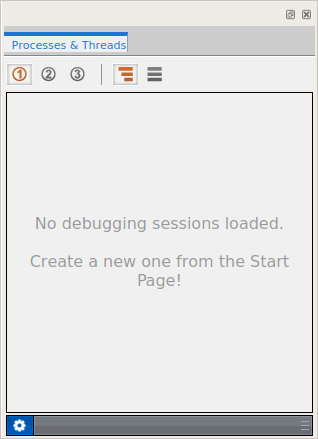
Within certain views, you can display or hide a drawer, indicated by a dark gray banner that turns lighter gray at cursor hover. Double-click to close the drawer so only the banner is displayed; double-click again to re-open it. Click and drag the banner to move the banner up or down to resize the areas within the view.
|
Drawer Open |
Drawer Closed |
|
|
|
Undocking and Docking
Any view can be undocked into a separate, floating window by clicking on the top banner, dragging it a short distance, and releasing the mouse button. To dock the view elsewhere, click again and drag it to another location, wait for a blank area to display, then release the mouse button.
Figure 2. Docking a View in a New Location
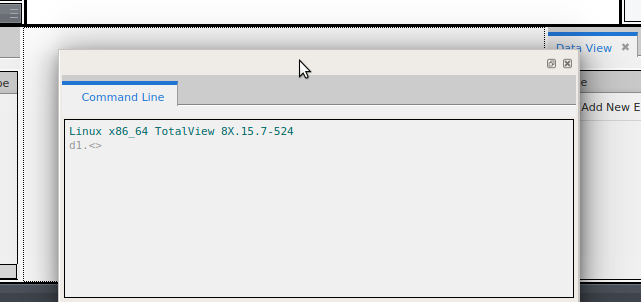
To return a floating window to its default position, double-click its banner or click the reattach icon  in the top-right corner next to the close (x) icon.
If you close the view, you can restore it using the Window | Views menu, or the context menu available by right-clicking in the toolbar area.