Change the layout of the Processes & Threads view
You can control which columns the Processes & Threads view displays, switch between a tree view and a table view, sort the view, and keep up to three independent views. To group processes and threads by attribute, see Group processes and threads by attribute.
On this page:
Show or hide columns
You can hide columns that you do not need and show them again later.
-
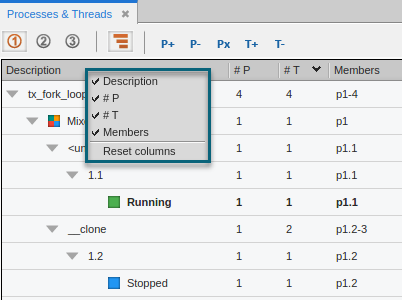
Right-click a column header.
-
Select a column name to show or hide that column.
Switch between tree view and table view
Select the tree view icon ( ) or the table view icon (
 ).
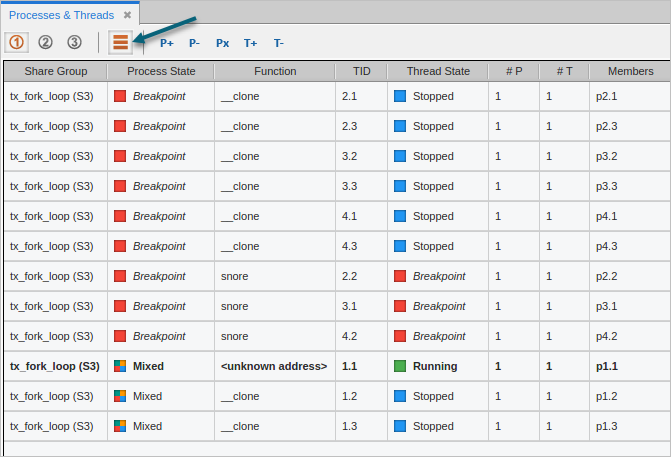
The following figure shows the table view of the Processes & Threads view.
Figure 77. Processes & Threads table view
Sort the view
You can sort the processes and threads by any column, in either the tree view or the table view.
-
Select the column header that you want to sort by. The view updates, sorting by the column you selected.
-
To switch between ascending and descending order, select the column header again.
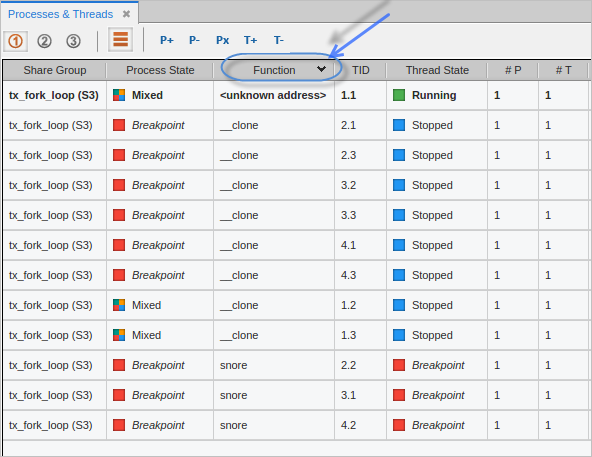
In the following figure, the table is sorted by Function, as indicated by the down arrow in the Function column header.
Use multiple views
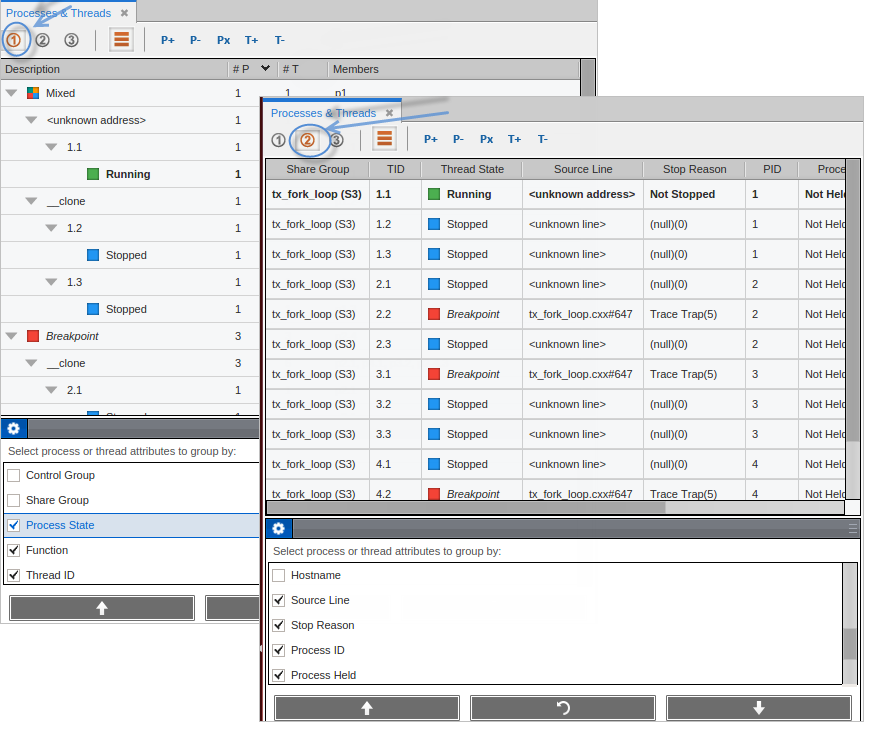
Select one of the three view icons ( ). Each view is independent and can have any combination and order of attributes, so you can keep several different views of your program.
The following figure shows views that display different attributes.