Launch parallel Python programs
Use an MPI launcher to start parallel Python programs under TotalView. Parallel Python programs use mpi4py with a supported MPI implementation. See Python debugging supported platforms and requirements for supported implementations.
On this page:
Validate your MPI Python runtime before debugging
Before debugging, validate your environment by running the program directly with mpirun, where <N> specifies the number of processes:
mpirun --mca op ^avx -np <N> <path-to-python> <path-to-script.py>
If this command succeeds but the TotalView launch fails, the issue is in debugger launch configuration rather than your MPI or Python runtime.
Launch a parallel Python program
-
From the command line, use the following syntax, where <N> specifies the number of processes:
totalview -args mpirun -np <N> %tv_python_wrapper% python <script.py>-
If you encounter "mpirun" in the Source view, select Go (
 ) to continue the launch.
 -
If a dialog asks whether to stop the parallel job, select No.
-
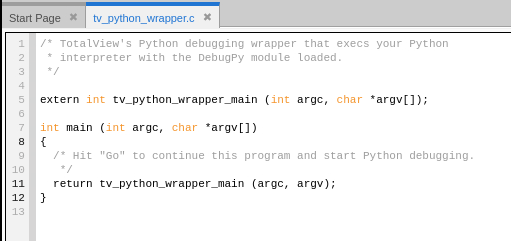
If execution stops at the Python wrapper program (tv_python_wrapper.c), select Go (
).
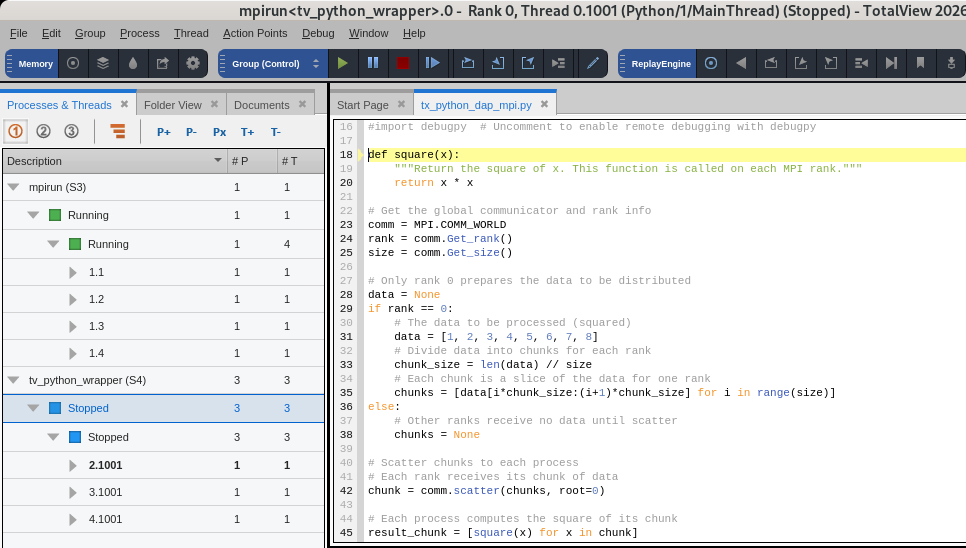
TotalView loads your Python script and displays the MPI launcher and process ranks in the Processes & Threads view.
-
-
(Optional) Set any breakpoints you want in your Python code. See Set breakpoints in Python code.
-
Select Go (
) to run your Python script.
View and switch process context
Use the Processes & Threads view to examine and control parallel execution. Select a process or thread to focus it; the Source, Call Stack, and Local Variables views update to that context.
Use the following controls to navigate between processes and threads:
-
P+ / P-: Move to the next or previous process. You can also use Process > Next Process and Process > Previous Process.
-
T+ / T-: Move to the next or previous thread in the current process.
-
Px: Jump to a specific process or thread ID or rank. You can also use Process > Jump to Process/Thread (Px).
For more information, see The Processes & Threads View.
Skip over the Python wrapper during MPI debugging
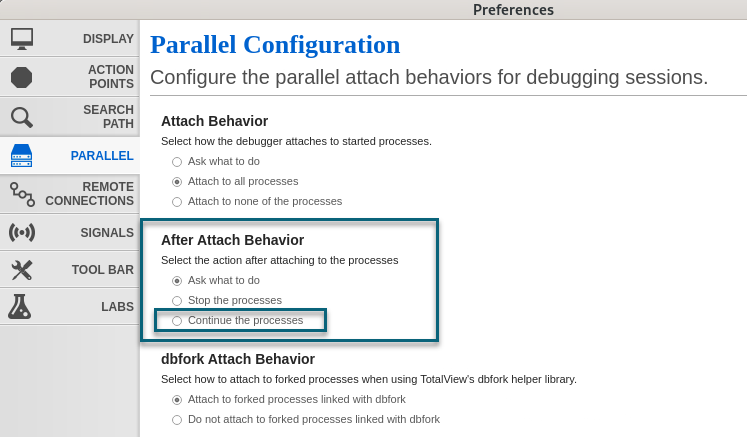
To avoid stopping at the Python wrapper each time you launch an MPI program, select Continue the processes in the After Attach Behavior options on the Preferences dialog's Parallel configuration tab.
Resolve launch errors
If you encounter the following error when launching a parallel Python program, use the recommended action to resolve the issue.
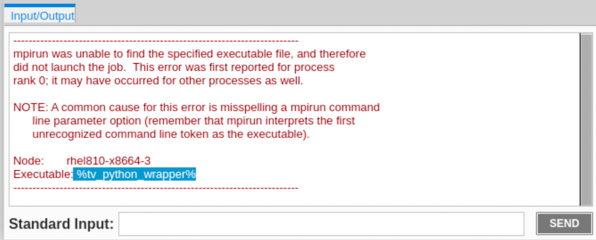
Error: mpirun was unable to find the specified executable file
This error in the Input/Output view indicates a TotalView version that does not support native Python debugging. To resolve this error, use a TotalView version that supports native Python debugging.