View Variable Expressions with Floating Scope
When TotalView displays an expression in the Data View, it uses the scope in which the variable was originally defined. This scope is defined as a fixed compilation scope, meaning that it remains fixed as your program executes. For example, if you're viewing the expression for the variable my_var in one routine and then continue execution into a second subroutine that also defines a my_var, TotalView continues to display the original my_var from the first routine. It does not automatically switch to the new my_var that is currently in scope.
To have TotalView update a variable’s scope as your program executes, you can turn on Floating Scope for the variable. This tells TotalView to look for the variable in the current scope each time execution stops. If it finds the variable, it displays the version defined in that scope.
Floating Scope is especially useful when debugging recursive routines or routines that use common variable names. For example, i, j, and k are frequently used as counter variables.
Turn on Floating Scope
You can turn on Floating Scope for a variable expression in the Data View by taking one of the following actions:
-
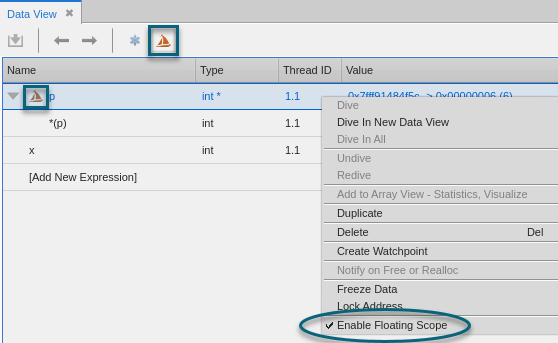
Right-click the expression and then select Enable Floating Scope in the context menu.
-
Select the expression and then click
 on the Data View toolbar.
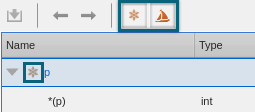
After you turn on Floating Scope for a variable expression, you can identify it in the Data View as demonstrated in Figure 61.
Figure 61. Floating Scope turned on
Turn off Floating Scope
You can turn off Floating Scope for a variable expression in the Data View by taking one of the following actions:
-
Right-click the expression and select Enable Floating Scope in the context menu to clear the checkmark.
-
Select the expression and click
 on the Data View toolbar.