Add variables to the Data View
Once you have started your program and it has stopped at a breakpoint or by using a stepping command, the Local Variables view populates with local data from whatever stack frame is selected in the Call Stack view. The Source view is also refocused on the source file associated with the selected frame.
Creating a new expression allows you to manipulate your data in multiple ways in order to clearly see your data’s structure, type, and value at any given point in your program’s execution. To add expressions, i.e. variables, to the Data View, use one of these methods:
-
Add to the Data View from the Local Variables view using either the context menu or by dragging and dropping
-
Move a variable from the Source view to the Data View using the context menu
Add to the Data View from the Local Variables view
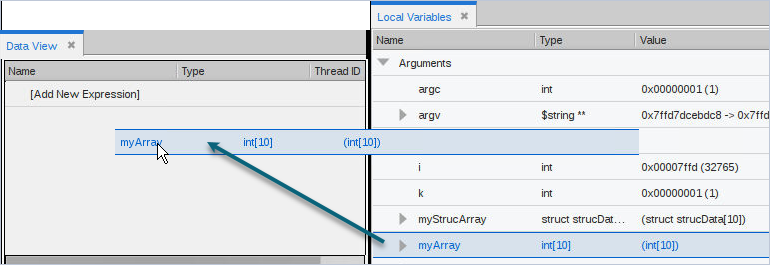
Use the Local Variables view to add variables to the Data View, either by using the context menu or by dragging and dropping. Choose Add to Data View to add to the existing view, or Add to New Data View to create a new Data View window.
Figure 48. Add to the Data View using the context menu
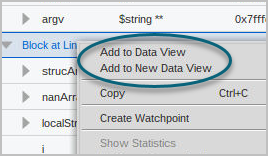
Figure 49. Add to the Data View by dragging from the Local Variables view
As you step through your program and the focus changes, the variables are evaluated using the scope in which they were added rather than the current scope.
Figure 50. Evaluated expressions use the original scope
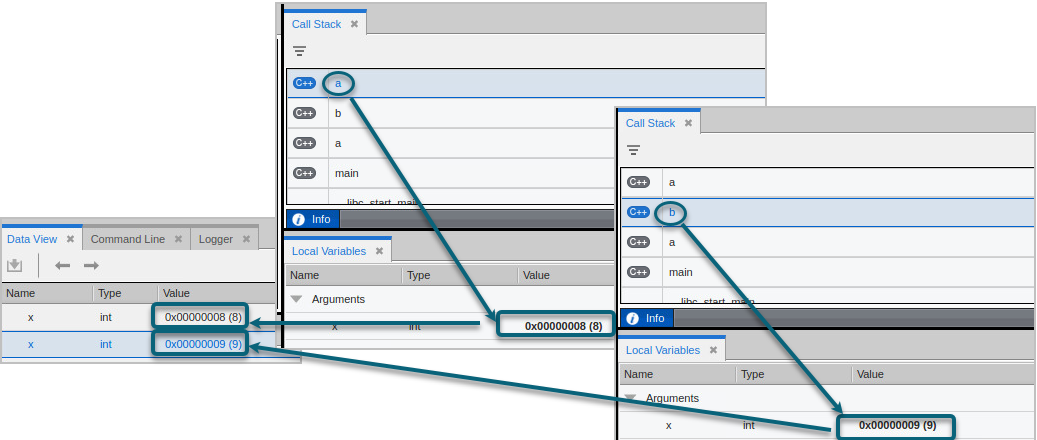
In Figure 50, the variable x was added to the Data View at two different scopes from two different, selected stack frames, so reflects a different value.
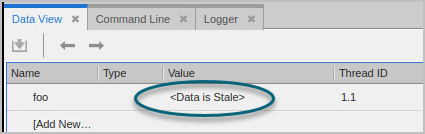
If a variable goes out of scope, an error is displayed:
Move a variable from the Source view to the Data View
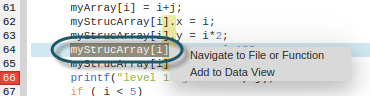
Use the context menu in the Source view to add a variable to the Data View.
Right-click on the variable and select Add to Data View.

You can also select an entire valid expression:
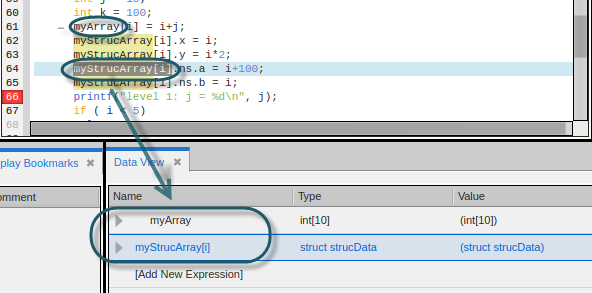
The expressions are added to the Data View:
Create a new expression from within the Data View
You can add a new expression to the Data View by taking one of the following actions::
-
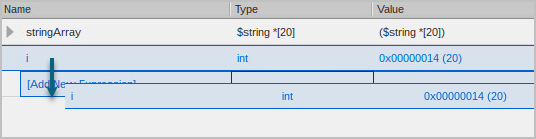
Drag and drop an existing expression to the row [Add a new Expression].
Here, the int i is added, resulting in two copies in the Data View.
-
Use the Dive in New Data View or Duplicate features, available from the context menu.
Right-click on an expression in the Data View and select Dive in New Data View or Duplicate. See Dive in New Data View or Duplicating an expression.
-
Entering a new expression manually. See Entering a new expression into the Data View.
Entering a new expression into the Data View
Because variables are actually expressions— in fact, lvalues that evaluate to a memory location— you can enter an expression into the Name field to troubleshoot data problems.
To add a new expression, double-click on Add New Expression in the Data View and begin typing.
Some examples:
-
View just a sub-element of a structure, by entering it as a new expression:
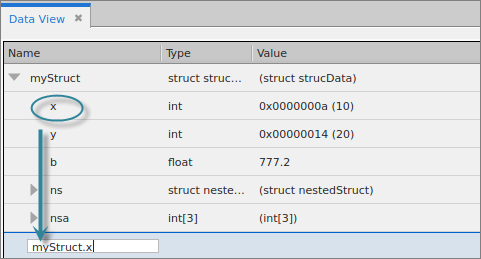
A new expression is added. This is the same as diving on the sub-element.

-
Increment a variable

-
Add or subtract variables, assuming some relationship:
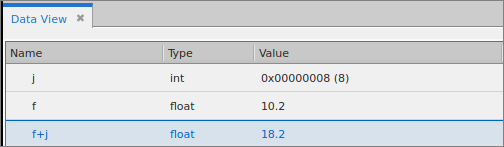
-
Add a global variable. Type the variable name into the Name column and TotalView automatically enters the type and value.
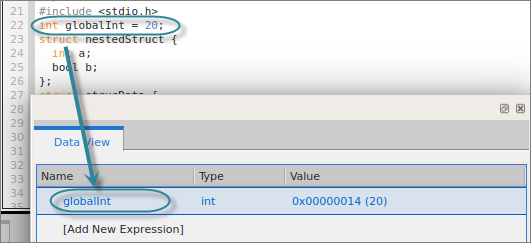
The value updates in the Data View as you run through your program.
Operating on multiple expressions
You can select multiple expressions to perform an operation on, such as to duplicate, dive, or delete. Hold down the Ctrl key and select the expressions, then right-click for the context menu.
Duplicating an expression
Choosing Duplicate from the context menu makes a copy of the variable and places it at the bottom of the existing Data View. You can duplicate any variable, including a single scalar variable, an entire complex variable, or a subelement of a complex variable.
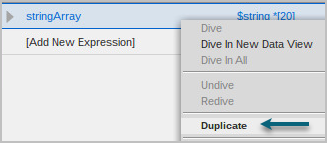
If the duplicated expression had been “dived on,” the dive stack is also duplicated. See Diving on Variables.