Viewing Variables in the Data View
On this page:
The Data View is a powerful tool that can list any variable in your program, along with its current or previous value and other information. This helps you to monitor variables as your program executes:
View changing values of variables.
Drill down into the nested structures of compound variables (which you can also do in the Local Variables view)
Add global variables to the Data View by directly typing them in.
Add expressions involving your program data.
Watching Data Values Update
As you run your program, any data added to the Data View displays updated values.
1. Add a Variable to the Data View
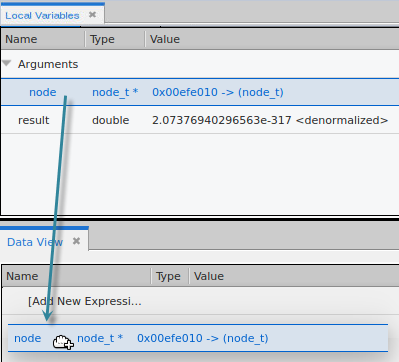
From the Local Variables view, just drag a variable into the Data View.
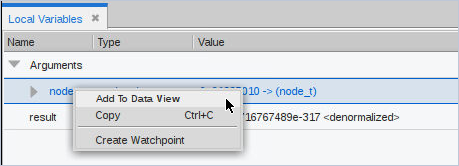
Alternatively, right-click and select Add to Data View:
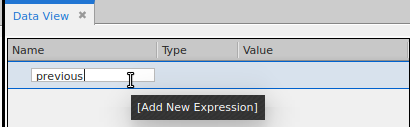
Add a global variable by double clicking Add New Expression in the Data View and manually entering it:
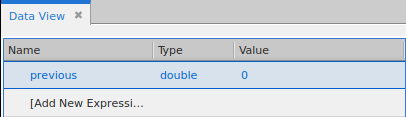
Once entered, TotalView populates its type and value:
2. View nested structures.
The variable node is a compound type with several nested structures.
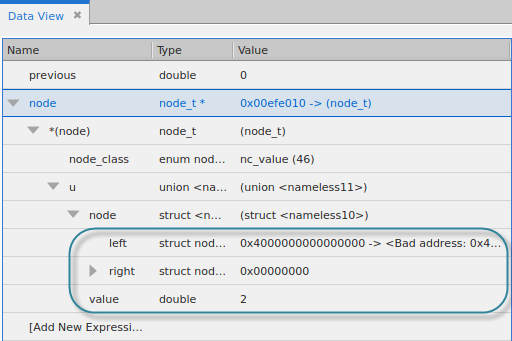
To view any nested structure, click the right-arrow, which means that additional nested structures exist. Here, we’ve drilled into the node variable’s union u to see that it contains a left and right struct, and a double value.
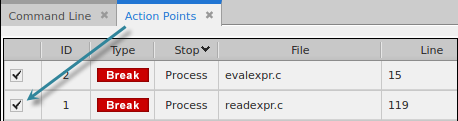
Re-enable the breakpoint at line 119 in the readexpr() function by clicking on its checkbox in the Action Points view, or recreate it if necessary:
Click Go twice to run the program to the re-enabled breakpoint.
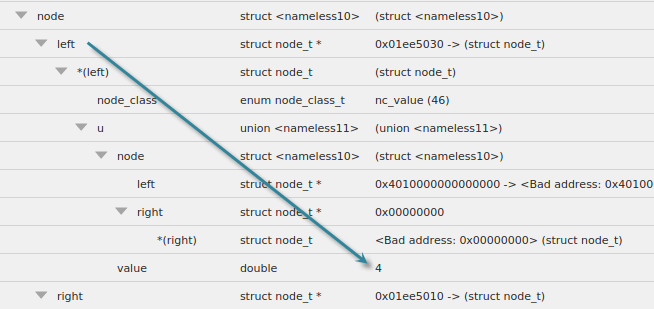
To see a variable’s value, drill further down into the left or right variable:
Remember that the data provided to the program consists of three simple expressions:
2+3
2*(4/5)
(1/2)-(3/4)
At this point in the program’s execution, the second expression is being read in. In the Data View, note that left has been assigned a value of 4. If you drill into right, it will have a value of 5, i.e. the input for the right side of the second expression.
3. View updated values.
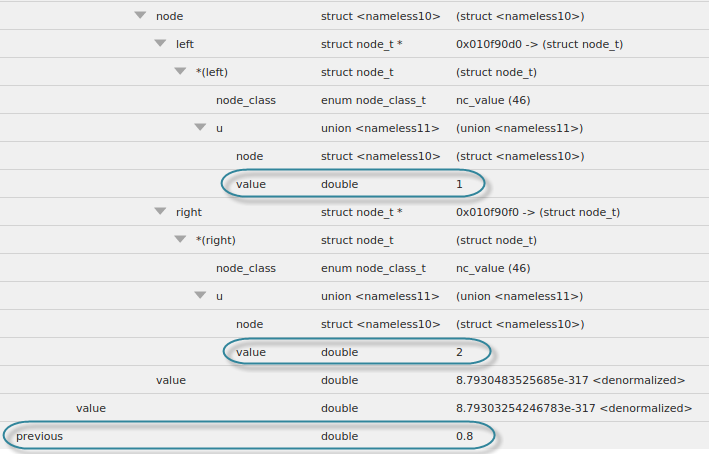
Click Go several times to run the program to the two breakpoints.
As the program reads in the expressions and evaluates them, the values change in the Data View:
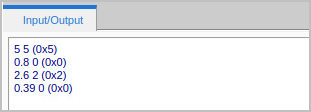
4. View the output in the Input/Output view.
The output of the program goes to stdout when fflush() is called.

As each expression is evaluated and printed to stdout, when the stdout buffer is flushed, the Input/Output view shows the result of evaluating the expression. Run the program to the end to see the completed output.
|
|
|
|
More on the Data View |
|
|
More on the Local Variables view |