Synchronizing Processes and Threads
On this page:
When you are running a multi-process or multi-threaded program, it’s frequently useful to synchronize execution to the same place. You can do this manually using a Hold command, or automatically by setting a barrier point. You can also use the Run To command (or duntil in the CLI) to run to a specified line in the Source view, which can synchronize processes and threads so you can step them together.
Holding and Releasing Processes and Threads
You can synchronize execution manually using a hold command, or automatically by setting a barrier point.
When a process or a thread is held, it ignores any command to resume executing. For example, if you placed a hold on a single process in a control group that contained three processes, selecting Group > Go would resume executing just the other two processes in the group. The held process would ignore the Go command.
Manually holding and releasing processes and threads is useful when:
You need to run a subset of the processes and threads. You can manually hold all but those you want to run.
A process or thread is held at a barrier point and you want to run it without first running all the other processes or threads in the group to that barrier. In this case, you release the process or the thread manually and then run it.
See Barrier Points for more information on manually holding and releasing barrier breakpoints.
Holding a Process
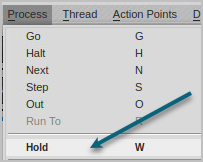
To hold or release a hold on a process, select the process in the Processes & Threads view, then toggle the menu item Process > Hold:
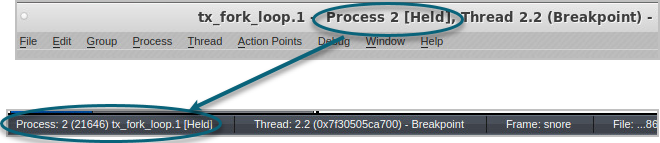
When TotalView is holding a process, the Processes & Threads view displays Stopped, and the title and status bar display “[Held”] for that process.
If a process or a thread is running when you set or release a hold, TotalView stops the process or thread and then holds it. TotalView lets you hold and release processes independently from threads.
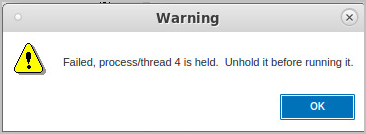
If you hold a process, then choose Process > Go, TotalView launches a warning popup that you first need to unhold the process before running it:
Holding a Thread
(CLI only)). To hold or release a thread, use the CLI:
Setting the focus changes the scope.
Using Run To and duntil
The Run To command in the UI, and the duntil command in the CLI, run to a selected line in the Source view code, helping to synchronize processes and threads so you can step them together. Using this command at process width or group width differs.
At process width:
If the thread of interest (TOI) is already at the goal location, TotalView steps the TOI past the line before the process runs. This lets you use the Run To command repeatedly in loops.
If any other thread in the process is already at the goal, TotalView temporarily holds it while other threads in the process run. After all threads in the process reach the goal, TotalView stops the process. This lets you synchronize the threads in the process of interest (POI) at a source line.
At group width:
TotalView identifies all processes in the control group that already have a thread stopped at the goal. These are the matching processes. TotalView then runs only non-matching processes. Whenever a thread arrives at the goal, TotalView stops its process. The command finishes when it has stopped all processes in the control group. This lets you synchronize at least one thread from all processes in preparation for group-stepping them.
|
|
|
|
Setting barrierpoints |
|
|
Using duntil to run to a selected line |