Debug a Parallel Program
TotalView supports the popular parallel execution models including MPI, OpenMP, SGI shared memory (shmem), Global Arrays, UPC, CAF, fork/exec, and pthreads.
On this page:
Starting an MPI Program
MPI programs use a starter program such as mpirun to start your program. You can start these MPI programs in two ways:
With the starter program under TotalView control. In this case, enter the name of the starter program on the command line.
Using the UI, in which case the starter program is not under TotalView control. In this scenario, enter program information into the Parallel Session Dialog from within the Session Editor.
Programs started using the UI have some limitations: program launch does not use the information you set for single-process and bulk server launching, and you cannot use the Attach Subset command.
Parallel Session Dialog
From the Start Page, select Debug a Parallel Program to launch the Parallel Session dialog.
1. Session and Program Details
Figure 7. Parallel Session: Session and Program Details
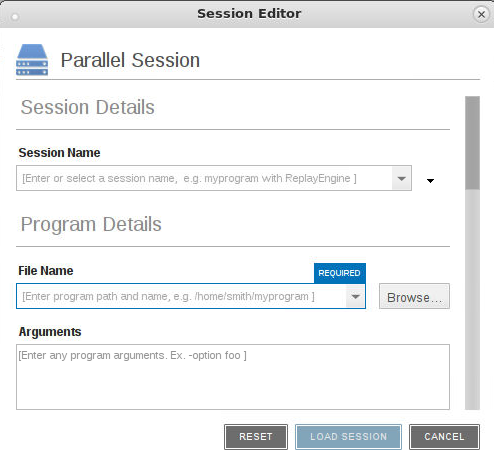
Session Details: Enter a session name in the Session Name field.
Program Details
File Name: Enter the name of your program or press Browse to browse to and select the file. You can enter a full or relative path name. If you have previously entered programs here, they will appear in a dropdown list.
If you enter a file name and the UI cannot find it, it displays the path in red; however, TotalView searches for it in the list of directories listed in your PATH environment variable. See Search Path.
Arguments: Enter any arguments to be sent to your program.
Because you are loading the program from within the UI, you need to enter the command-line arguments that the program requires.
2. Parallel Details
Figure 8. Parallel Session: Parallel Details
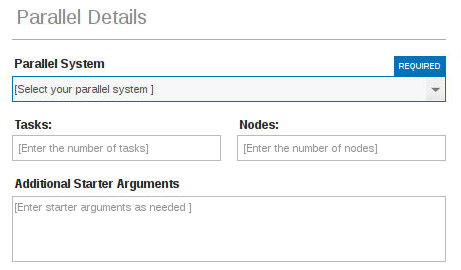
Parallel System: Select which parallel system profile TotalView should use when starting your program. This profile can be one that TotalView provides, one created for your site, or one that you create. (For information, see MPI Startup Customizations.)
Tasks: Enter a number indicating how many tasks your program should create.
If your system has a default value and you want to use it, enter a value of 0 (zero).
If your system has no default value or you want to override the default, enter a value of 1 or greater.
Nodes: (System-dependent) Enter a number indicating how many nodes your program should use when running your program. (Not all systems use this value, so this field may not be visible.)
Additional Starter Arguments: If your program’s execution requires that you use arguments to send information to the starter process such as mpirun or poe, enter them in this field. (In contrast, if you need to use arguments to send information to your program, enter those arguments in the Arguments field under Program Details.)
3. Debug Options: See Debug Options.
4. Program Environment: See Program Environment.
5. Standard Output/Error Redirection: See Standard Input and Output.
6. Standard Input Redirection: See Standard Input and Output.
7. Select the Load Session button to launch the debugger.
Note that any errors in the parallel configuration will launch an error pop-up:
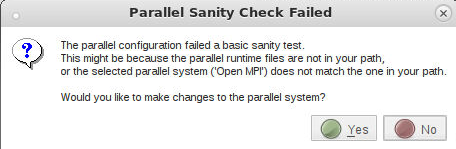
If you continue with the session, additional errors launch, and your session may not run correctly.
Once created, a session named my_foo can be quickly launched later using the -load command line option, like so:
totalview -newui -load_session my_foo
|
Set up MPI debugging sessions for various environments and special use cases |
|
|
Set up non-MPI parallel debugging sessions for applications that use the parallel execution models that TotalView supports |
|
|
Create MPI startup profiles for environments that TotalView doesn't define |
|
|
Tips for debugging parallel applications |
Debugging Strategies for Parallel Applications” in the Classic TotalView User Guide |
Attach to a Running Process
If a program you’re testing is hung or looping (or misbehaving in some other way), you can attach to it while it is running. You can attach to single and multi-process programs, and these programs can be running remotely.
A list of processes running on the selected host displays in the Attach to running program(s) dialog.
Figure 9. Attaching to a running program
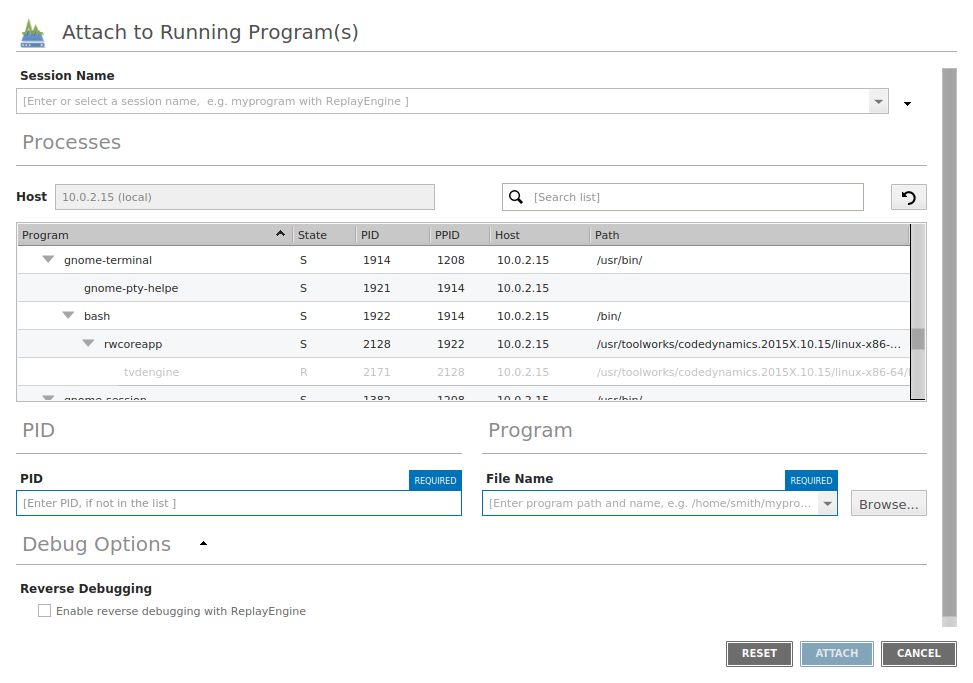
In the displayed list, processes to which TotalView is already attached are shown in gray text, while the processes displayed in black text are not currently running under TotalView control.
1. Enter a name for the session in the Session Name field.
To navigate to the program, click the Browse button under File Name.
2. Click on the program's name under Program, then click Attach.