Hold and Release Processes and Threads
As an alternative to synchronizing execution automatically by setting a barrier point, you can synchronize execution manually by running the Hold command in the UI or the dhold command in the CLI.
When a process or a thread is held, it ignores any command to resume executing. For example, if you place a hold on a single process in a control group that contains three processes, you can click Group > Go to resume only the two unheld processes in the group. The held process ignores the Go command.
Manually holding and releasing processes and threads is useful in the following situations:
-
When you want to run only a subset of processes and threads, you can run only that subset while manually holding all others.
-
When a process or thread is held at a barrier point, and you want to run the process or thread without first running all other processes or threads in the group to that barrier, you can manually release the specific process or thread and then run it.
For information on holding and releasing barrier breakpoints, see Barrier Points.
On this page:
Hold and Release a Process
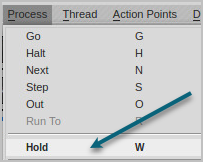
To place a hold on a process, click the process in the Processes & Threads view to select it, and then click Process > Hold. To release a held process, select the process and click Process > Hold again.
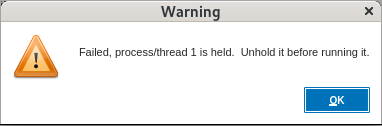
If you hold a process and then click Process > Go, a warning alerts you that you must remove the hold on the process before running it.
Hold and Release a Process Group
To place a hold on a group of processes, select the group or a process in the group and click Group > Hold. To release a held group, select the group or a process in the group and click Group > Release.
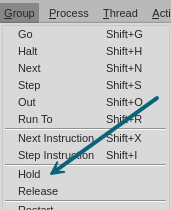
When you hold a group, you hold all processes in the control group associated with the thread in focus. When you release a group, you release all processes that were held in the control group.
View the Process Hold Status
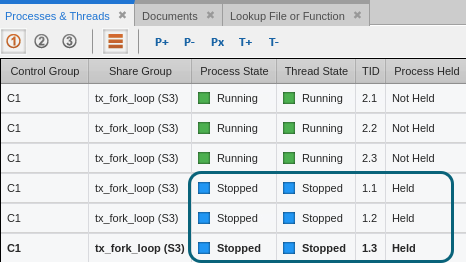
You can observe the hold status of a process in the Processes & Threads view in both the tree view ( ) and the tabular view (
 ), as shown in Figure 119 and Figure 120, respectively.
Figure 119. Process status in the Processes & Threads view, tree view
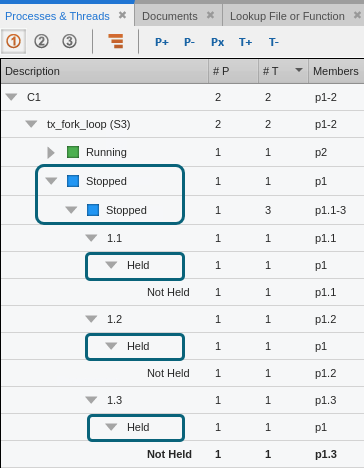
Figure 120. Process status in the Processes & Threads view, tabular view
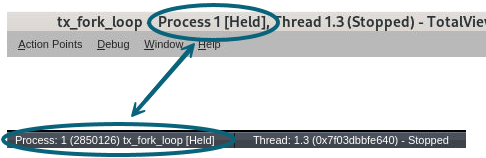
You can also observe the hold status for a selected process in the title and status bar.
Place and Release Process Holds Using CLI Commands
You can use the following CLI commands to hold and release a process.
Hold and Release a Thread
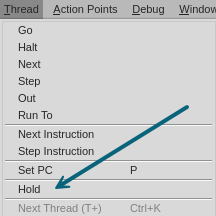
To place a hold on a thread, click the thread in the Processes & Threads view to select it, and then click Thread > Hold. To release a held thread, select the thread and click Thread > Hold again.
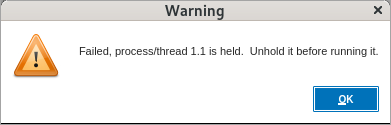
If you hold a thread and then click Thread > Go, a warning alerts you that you must remove the hold on the thread before running it.
Hold and Release a Thread Group
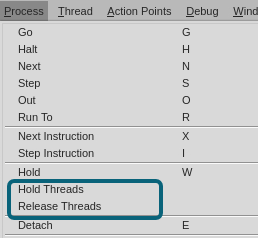
To place a hold on all threads in a process, select the process or a thread in the process, and then click Process > Hold Threads. To release all held threads in a process, select the process or a thread in the process, and then click Process > Release Threads. Whether you have selected the process or a thread in the process, these commands will affect all threads in the process.
View the Thread Hold Status
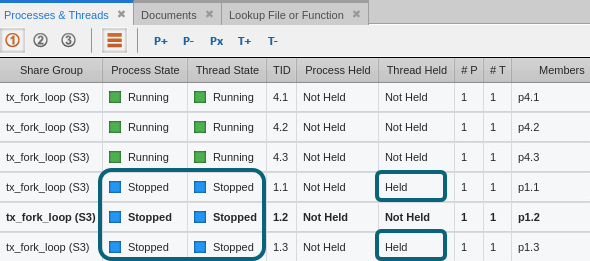
You can observe the hold status of a thread in the Processes & Threads view in both the tree view () and the tabular view (), as shown in Figure 121 and Figure 122, respectively.
Figure 121. Thread status in the Processes & Threads view, tree view
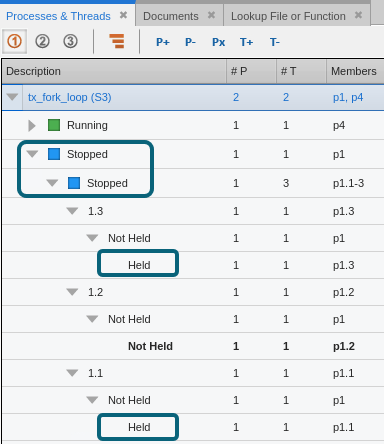
Figure 122. Thread status in the Processes & Threads view, tabular view
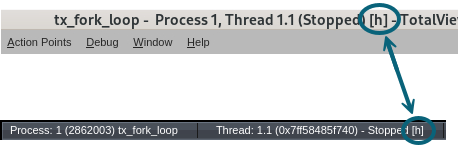
You can also observe the hold status for a selected thread in the title and status bar.
Place and Release Thread Holds Using CLI Commands
You can use the following CLI commands to hold and release a thread.