Signal Action Settings
On the Signals tab of the Preferences dialog, you can configure how TotalView responds to operating-system signals and debugger events. See Default Signal Handling to see how TotalView handles UNIX signals by default.
Figure 94. Preferences: Signal Action Settings
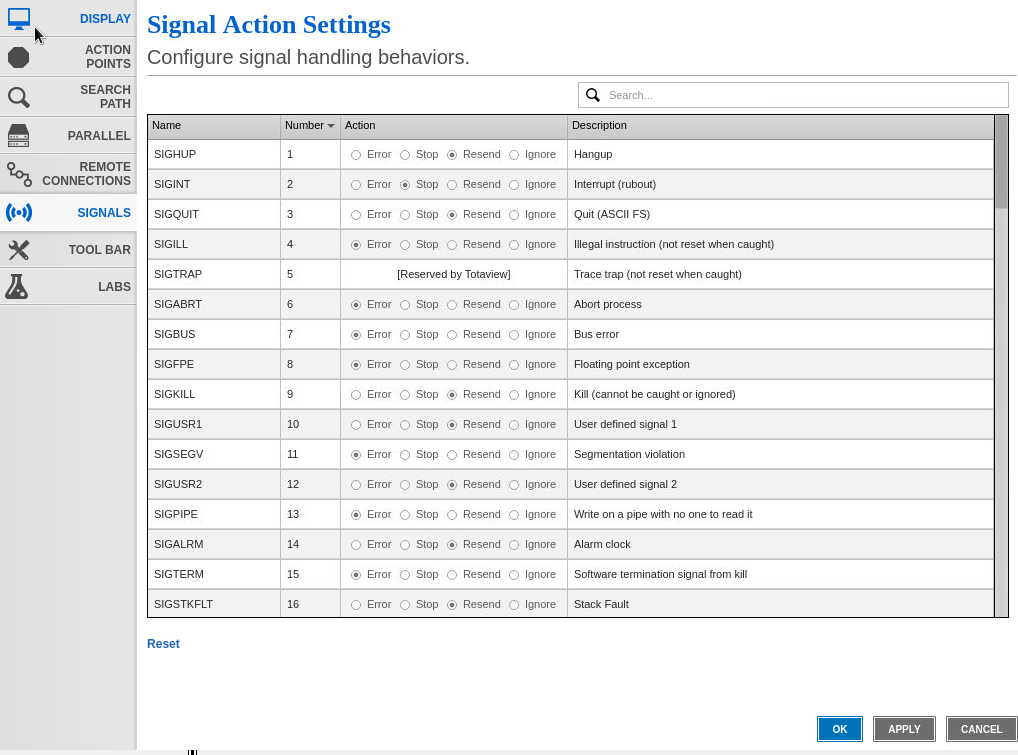
The default behavior for each signal is preselected in the Action column. (The list of signal names and numbers is specific to your operating system.)
To set a signal action:
-
Open the Preferences dialog by using one of the following methods:
-
Select File > Preferences.
-
On the Settings toolbar, select Settings (
 ).
-
-
In the Preferences dialog, select SIGNALS.
-
In the signals table, locate the signal or event you want to configure and select the action you want.
-
Select OK to apply the changes and close the dialog.
You can also set signal action values in the CLI using the state variable TV::signal_handling_mode, which you can add to a .tvdrc startup file. To set a signal action for a single TotalView session, use the command-line option ‑signal_handling_mode.
On this page:
Signals and events handled by TotalView
TotalView lets you configure how the debugger responds to operating-system signals, such as SIGSEGV, SIGINT, and SIGFPE. You can also configure actions for debugger-defined pseudo-signals and GPU exception events. The signals table includes the following categories:
-
Operating-system signals: UNIX signals such as
SIGSEGV,SIGINT, andSIGFPE. For built-in defaults, see Default Signal Handling. -
Python exception pseudo-signals (Linux and macOS): Debugger-defined events that control whether execution stops when Python exceptions are raised, remain uncaught, or propagate from your code into library or third-party code:
PYTHON_EXC_RAISED,PYTHON_EXC_UNCAUGHT, andPYTHON_EXC_USER_UNCAUGHT. These events apply only on platforms where TotalView supports native Python debugging. See Configure Python exceptions. -
Stop-on-exit pseudo-signals (Linux): Debugger-defined events that control stopping on process and thread exit:
PROCESS_EXIT,THREAD_EXIT, andFATAL_SIGNAL_EXIT. See Stop execution on process or thread exit (Linux). -
CUDA exceptions (Linux): GPU exception errors reported as signals, such as
CUDA_EXCEPTION_0. These events apply only on platforms where TotalView supports CUDA debugging. See GPU Error Reporting.
Pseudo-signals represent debugger events rather than operating-system signals, so there is no operating-system signal to resend.
Signal handling actions
The action assigned to a signal determines how TotalView responds when that signal occurs. The following table describes the result of each action.
|
Action |
Description |
|
Error |
Stops the process, places it in the error state, and displays an error. Select this action for severe error conditions, such as SIGSEGV and SIGBUS. TotalView stops all related processes by default. To change this behavior, set the state variable TV::stop_relatives_on_proc_error to false. |
|
Stop |
Stops the process and places it in the stopped state. Select this action to handle this signal as a SIGSTOP signal. |
|
Resend |
Sends the signal back to the process. This setting is useful when testing your program’s signal handling routines. TotalView sets certain signals to Resend by default because most programs have handlers to handle program termination. |
|
Ignore |
Discards the signal and continues the process. The process receives no notification that a signal was generated. |