Search Path Locations
On the Search Path tab of the Preferences dialog, you can define a search path configuration for the EXECUTABLE_PATH state variable to customize the locations in which TotalView searches for executable, source, and object files. This can be helpful if TotalView cannot locate your files or if you have additional locations where you want TotalView to search for them.
The search path configuration is initially undefined, but you can add, edit, and delete search directories, define the order in which directories are searched, and specify whether TotalView performs recursive searches on any subdirectories of the directories you have added.
Figure 97. Preferences: Search Path Configuration (click to enlarge)
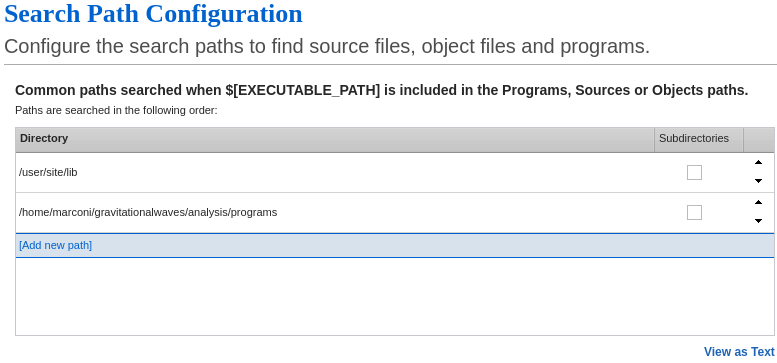
The Search Path Configuration options include the following:
-
Directory: This column lists the directories that you want TotalView to search.
-
To add a new directory, click Add new path and enter the directory path. You can add more than one directory to a line, separated by colons; they are separated into individual lines in this view after you click Apply.
-
To adjust the search order for the directories in the list, use the up and down icons to move the directories to the order that you want.
-
To edit a directory, double-click it to enable edit mode.
-
To delete a directory, right-click it and then click Delete.
-
-
Subdirectories: Select this checkbox to instruct TotalView to search recursively on the selected directory. Selecting this option wraps the directory in the
$tree()function in the EXECUTABLE_PATH variable.Using the $tree() function can potentially degrade performance. To learn more, see The $tree() Function. -
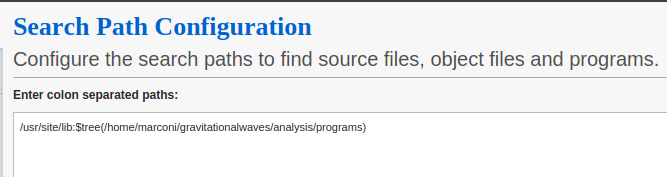
View as Text: Click this option to open the text view mode, where the search path configuration appears as it would for the EXECUTABLE_PATH variable in the command line interface. This mode is editable and you can add, remove, and reorder paths. Click View in Table to return to the default view.
Example
The following images shows how a search path configuration in the table view translates to the text view. Note how the custom search paths display in the text view separated by colons and how the selected Subdirectories checkbox translates to the $tree() function for the specified directory.
Figure 98. Search Path Configuration: Table View
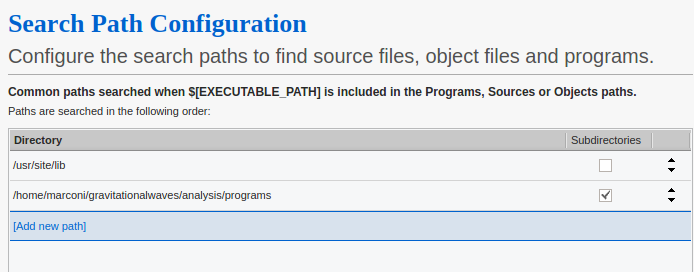
Figure 99. Search Path Configuration: Text View