Controlling Execution
On this page:
Set breakpoints in GPU code before you start the process. If you start the process without setting any breakpoints, there are no prompts to set them afterward.
Note that breakpoints set in GPU code will slide to the next host (CPU) line in the source file, but once the program is running and the GPU code is loaded, TotalView recalculates the breakpoint expression and plants a breakpoint at the proper location in the GPU code. (See Sliding Breakpoints .)
Note that breakpoints set in GPU source code might slide to a host source line that is executed before the GPU code is loaded; thus, the process might unexpectedly stop at that line before it stops in the GPU kernel.
Viewing GPU Threads
Once the GPU kernel starts executing, it will hit breakpoints planted in the GPU code, as shown in Figure 160.
Figure 160. ROCm thread stopped at a breakpoint, focused on GPU work-item (0,0,0)[1,0,0]
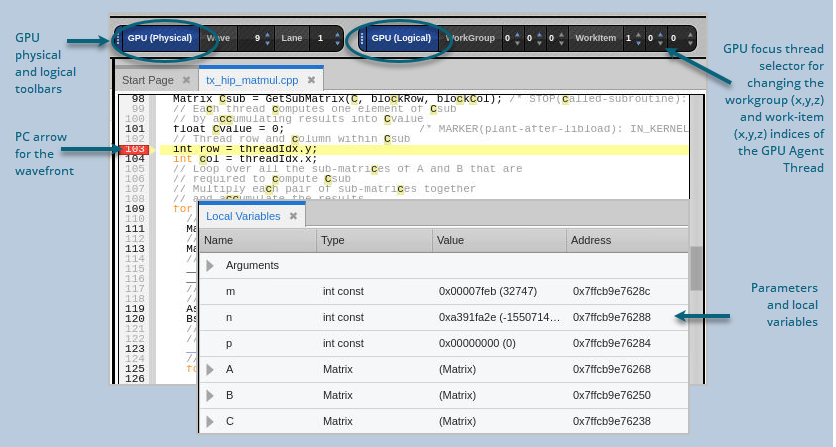
The logical coordinates of the GPU focus work-group and work-items are displayed in the GPU logical toolbar at the top of Figure 160 above. (See AMD ROCm GPU Toolbars.) The WorkGroup control shows the 3-D focus position of the work-group in the kernel dispatch. The WorkItem control shows the 3-D focus position of the work-item in the work-group.
The GPU focus work-group and/or work-item can be changed using the GPU focus selector in the logical toolbar. When you change the GPU focus work-group or work-item, the logical coordinates displayed also change, and the Call Stack and Source view are updated to reflect the state of the new GPU focus work-group or work-item.
The execution location of the GPU focus work-item is identified by the yellow PC highlighted line in the Source view. The work-items are grouped into "wavefronts" (or "waves" for short) that execute in parallel, so multiple work-items may have the same PC value. The work-items may be part of the same wave (consisting of 32 or 64 lanes that execute concurrently), or part of different waves.
The Local Variables view shows the parameters and local variables for the function in the selected stack frame. The variables for the selected GPU kernel code, function, or inlined function expansion are shown.
The Call Stack shows the stack backtrace and inlined functions:
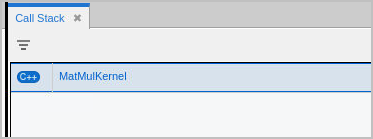
Each stack frame in the stack backtrace represents either the PC location of GPU kernel code, or the expansion of an inlined function.
GPU Agent Thread IDs and Coordinate Spaces
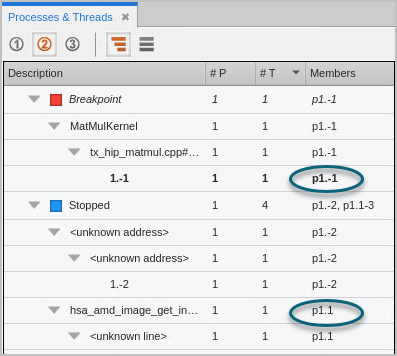
Again, TotalView gives host threads a positive debugger thread ID and GPU agent threads a negative thread ID. In this example, the initial host thread in process "1" is labeled "1.1" and the GPU agent thread is labeled "1.-1".
Figure 161. ROCm GPU Thread IDs
Use the "GPU focus selector" on the GPU toolbar to change the logical coordinates of the GPU focus work-group and/or work-item. For more information, see AMD ROCm GPU Toolbars.
Figure 162. GPU Focus Selector on the GPU logical toolbar

Single-Stepping GPU Code
TotalView allows you to single-step GPU code just like normal host code. The GPU focus work-item is used to guide the single-step operation in a manner similar to single-stepping a CPU thread. TotalView uses GPU-level instruction disassembly, instruction-level stepping, and breakpoint hopping to implement GPU source-level single stepping.
Thread-width single-stepping: When the single-stepping width is a single GPU agent thread, all the waves on the agent are allowed to execute until the GPU focus work-item reaches the source-level single-stepping goal.
Process or group-width single stepping: When the single-stepping width is a process or a group, all the GPU agent threads in the process or group are allowed to execute. This technique tends to keep all the waves executing in lockstep because they normally hit the temporary breakpoints planted by the source-level single stepper. However, wave and work-item divergence are allowed.
Halting a Running Application
You can temporarily halt a running application at any time by selecting "Halt", which halts the host and GPU agent threads. This can be useful if you suspect the kernel might be hung or stuck in an infinite loop. You can resume execution at any time by selecting "Go" or by selecting one of the single-stepping buttons.