Go to a specific line in the Source view
Use this task when you already know the line number of interest—for example, from a build log, error message, or code review comment—and you want to jump directly to that location in the current source file without scrolling.
-
Click in the Source view and do one of the following:
-
On the menu bar, click Edit > Go to line.
-
Press Ctrl+G (Windows and Linux) or Command+G (macOS).
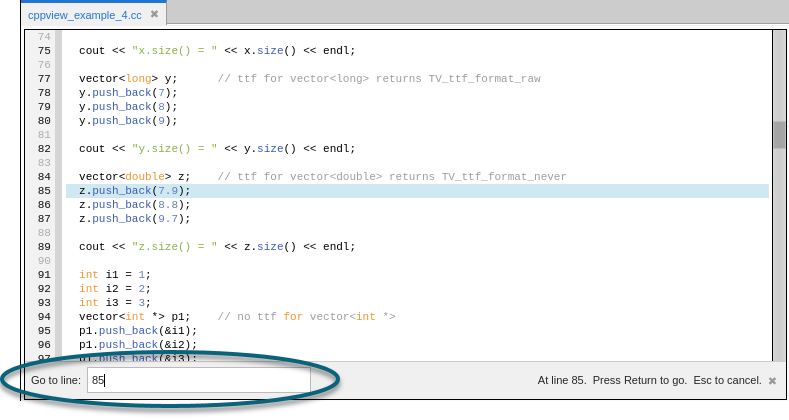
The Go to line panel appears in the Source view.
-
-
In the Go to line panel, type the line number you want to inspect. As you type, the Source view scrolls to and highlights the corresponding line location so you can preview the destination.
-
Confirm or cancel the navigation, as follows:
-
To navigate to the line, press the Enter (Return) key.
-
To cancel the navigation and return to the previously selected line, press the Esc key or click Close
 at the right end of the panel.
-