Find files and functions using the Lookup File or Function view
Use the Lookup File or Function view to locate source files or function definitions in your program by searching for keywords or partial names. This view is especially useful when you are working with a large or unfamiliar codebase and want to navigate directly to relevant code.
On this page:
Find a file or function
-
In the Lookup File or Function view, enter a keyword or partial name in the search field.
-
Review the list of matching files and functions.
-
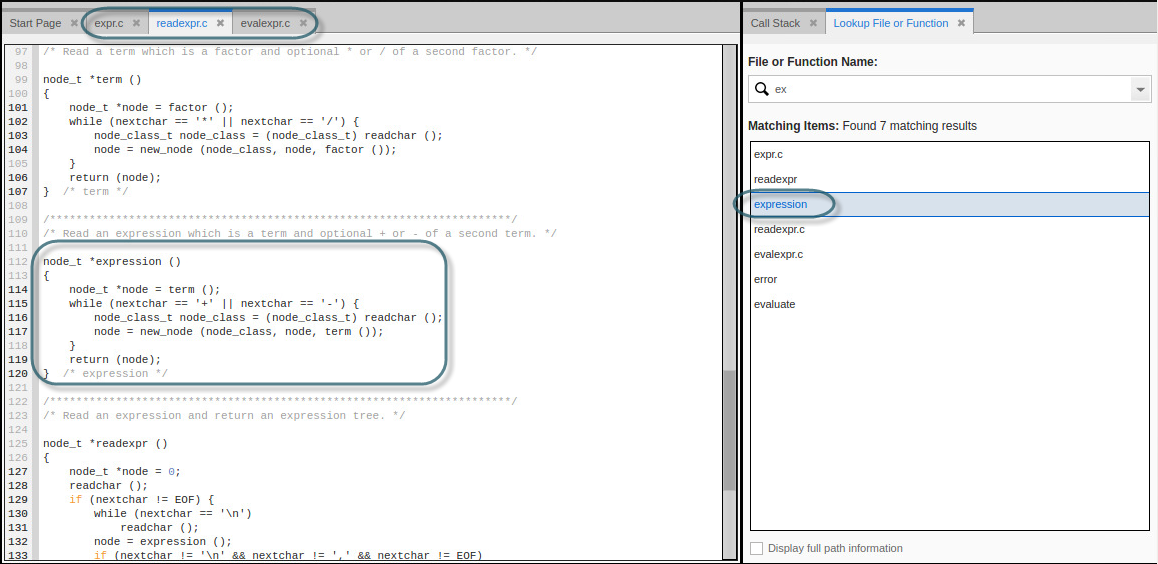
Select a result to open it in the Source view.
When you select a file, the source file opens in a Source view tab. When you select a function, the Source view displays the function definition within the source file.
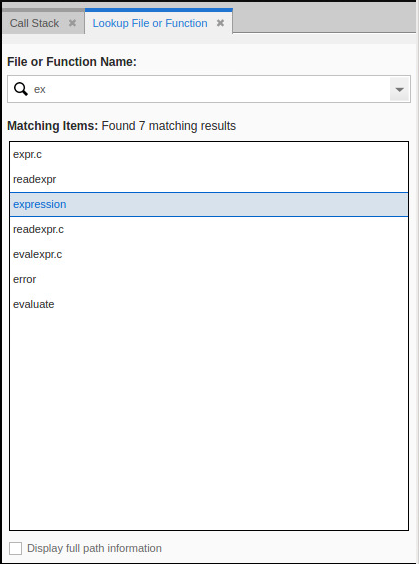
Navigate search results
As you select different results, the source code appears in the same Source view tab, replacing the existing source code. This behavior lets you scan multiple matches without opening extra tabs.
To keep a source file open:
-
Double‑click a result to open it in a permanent Source view tab.
How search results are determined
TotalView bases search results on the debugging symbols available in the executable files for the running processes. If your program links to shared libraries that weren't compiled with debugging symbols, files and functions from those libraries don't appear in the results.
In addition, if the program hasn't yet executed code from a dynamically shared library, TotalView can't access that library’s debugging symbols and doesn't return related files or functions.
Display full path information
To display full path information for each result, select the checkbox at the bottom of the Lookup File or Function view.