Find text in the Source view
Use highlighting and the Find action to locate specific text in the Source view—such as variable names, function calls, or substrings—and move between each occurrence.
Both methods are useful for finding text, but the Find action has several advantages over simple highlighting, including the following:
-
Next and Previous buttons that can save you tedious scrolling.
-
The ability to search for partial strings such as
evalinstead ofevaluate. -
Case sensitive searching.
-
Continuation of the current search if you move to another file in the Source view.
On this page:
Highlight all occurrences of a string
Use highlighting when you want an immediate view of all matches for a specific string.
-
Click a continuous string in the Source view to highlight that string and all matching occurrences in the current Source view.
-
Scroll to review every occurrence of the string.

To clear highlighting, click in any empty space in the Source view.
Use the Find action
Use the Find action when you want to step through matches and refine the search.
-
Optionally select the text you want to search for.
If you select text in the Source view before you start the Find action, TotalView loads the selected text into the Find text box automatically.
 results in
-
Open the Find panel by using one of the following methods:
-
On the menu bar, click Edit > Find.
-
Press Ctrl+F.
-
-
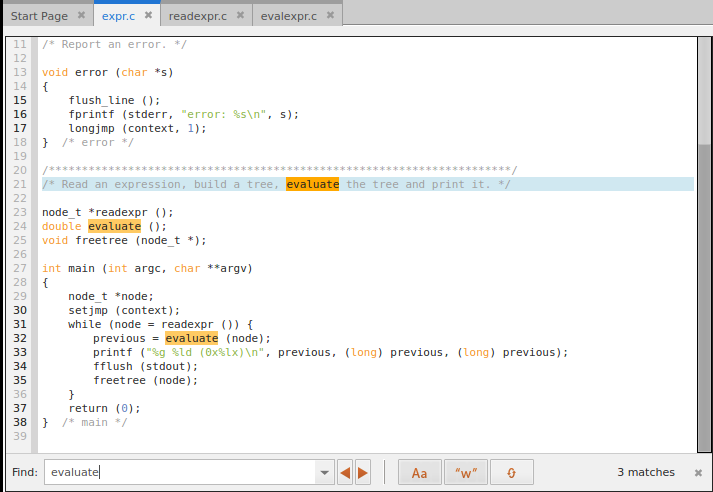
In the Find panel, verify the search text or type a new string to search for. The Source view highlights the matching strings and the Find panel displays the total number of matching strings found.
-
Move between matches using one of the following methods:
-
Click Next
 or press Ctrl+G to move to the next occurrence.
 -
Click Previous
 or press Ctrl+Shift+G to move to the prior occurrence.
-
-
(Optional) Refine the search as follows:
-
Click Case Sensitive
 to match letter case.
 -
Click Whole Word
 to match only complete words.
-
-
(Optional) Click Wrap Search
 to continue searching from the beginning of the file after the last instance.
To close the Find panel, press the Esc key or click Close  at the right end of the panel.