Delete expressions from the Data View
Expressions in the Data View let you evaluate variables, structures, arrays, and module values during a debugging session. You can remove expressions when they're no longer needed to reduce visual clutter.
This topic explains what happens when you delete expressions from the Data View and describes the supported ways to delete individual expressions or all expressions at once.
On this page:
About deleting expressions
Deleting an expression removes it only from the Data View. It doesn't affect the underlying variable, program state, or source code.
The following rules apply when you delete expressions from the Data View:
-
Deleting an expression deletes the entire, top‑level expression from the Data View.
-
You can't delete individual elements of a structure or array.
-
For complex variables, deleting any child element removes the top‑level variable.
These rules ensure consistency across languages and expression types.
Delete expressions
Use the Data View context menu or your keyboard to delete expressions. You can delete a single expression, multiple selected expressions, or all expressions at once.
Delete one or more selected expressions
Delete selected expressions when you want to clean up only specific expressions without affecting other expressions in the Data View.
To delete one or more expressions:
-
In the Data View, select one or more expressions.
-
Do one of the following:
-
Press the Delete key on your keyboard.
-
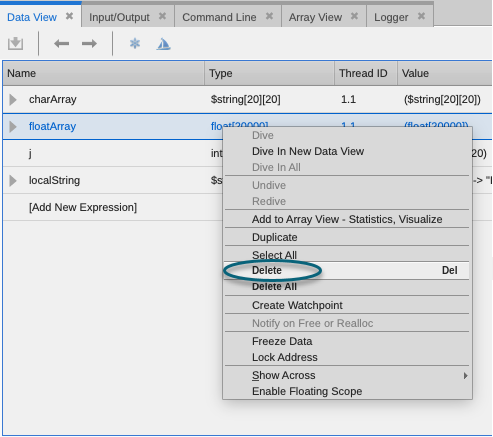
Right‑click the selection and select Delete.
-
TotalView removes the selected expressions from the Data View.
Delete all expressions
Use Delete All when you want to clear the Data View without selecting individual expressions.
To delete all expressions from the Data View:
-
In the Data View, right‑click anywhere in the Data View.
-
Select Delete All.
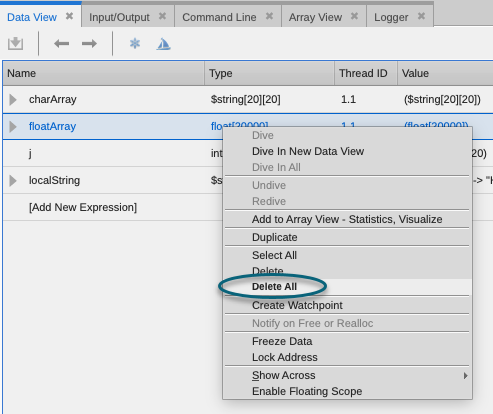
TotalView removes all expressions from the Data View, including expressions that weren't selected.