Program Environment
Control the program environment by changing the working directory or setting environment variables.
On this page:
Working Directory
The working directory option specifies a working directory for executing your target program. If not provided, the default is the directory from which you invoked TotalView.
This value can be entered into the UI or on the command line when starting TotalView. It can then be modified during a debug session using the Process > Modify Arguments menu.
Set or Modify the Working Directory in the UI
To set or modify the working directory in the Session Editor, enter the full path in the Working Directory field:
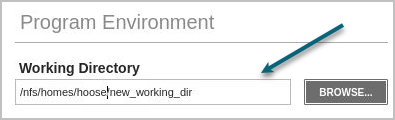
If the directory does not exist, “Directory not found locally” displays.
Set the Working Directory on the Command Line
When starting TotalView from a shell, set the working directory using the command line argument ‑working_directory, like so:
totalview -working_directory /tmp
Environment Variables for the Program
When loading the program from within TotalView, add any necessary environment variables into the Environment variables for the program field.
Figure 11. Setting Environment Variables
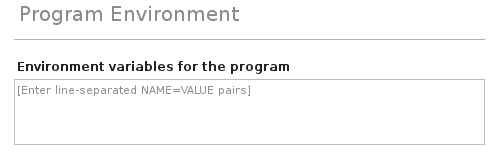
Either separate each argument with a space, or place each one on a separate line. If an argument contains spaces, enclose the entire argument in double-quotation marks.
At startup, TotalView reads in your environment variables to ensure that your program has access to them when the program begins executing. Use this field to add additional environment variables or to override values of existing variables.
TotalView does not display the variables that were passed to it when you started your debugging session. Instead, this field displays only the variables you added using this command.
The format for specifying an environment variable is name=value. For example, the following definition creates an environment variable named DISPLAY whose value is enterprise:0.0:
DISPLAY=enterprise:0.0