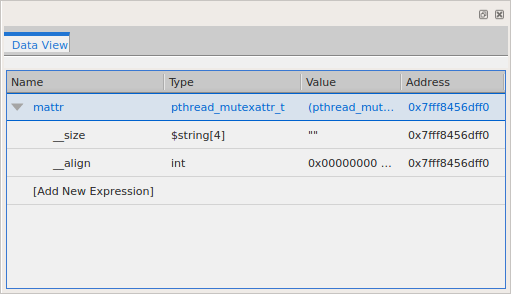
Data View
Using the Data View, you can create expressions in order to analyze your data. You can add variables to the Data View by taking one of the following actions:
-
Click a variable in the Local Variables view and drag it into the Data View.
-
Right-click a variable in the Local Variables view and click Add to Data View or Add to New Data View.
Once a variable is displayed in the Data View, you can manipulate it in multiple ways to clearly see what your data is doing. For example, you can:
-
Dereference pointers to access the data they point to.
-
Recast data to see different views of it, such as recasting pointers to the first value in an array into the actual array so you can see the contained values.
-
Change data values to see the effect on the program (which you can also do in the Local Variables view).
-
Dive on the variable to drill down for detail on its subelements.
-
Freeze the data to examine changes in an expression's data as you step through your program or progress between stopping points in your code.
-
Lock the expression's address to continually reevaluate what is at that address as program execution progresses.
-
View an expression across threads and processes.
Figure 9. The Data View