Enabling and Disabling ReplayEngine
You can prepare a program for replay when you first load it into TotalView. Once the program is loaded, there are a number of ways to enable replay.
On this page:
Enabling ReplayEngine at Program Load
To enable ReplayEngine when loading a program into TotalView, select the checkbox Enable reverse debugging with Replay Engine in either the Debug a Program or Attach to Process dialogs available on the Start Page.
Figure 209. Enabling ReplayEngine from the Start Page
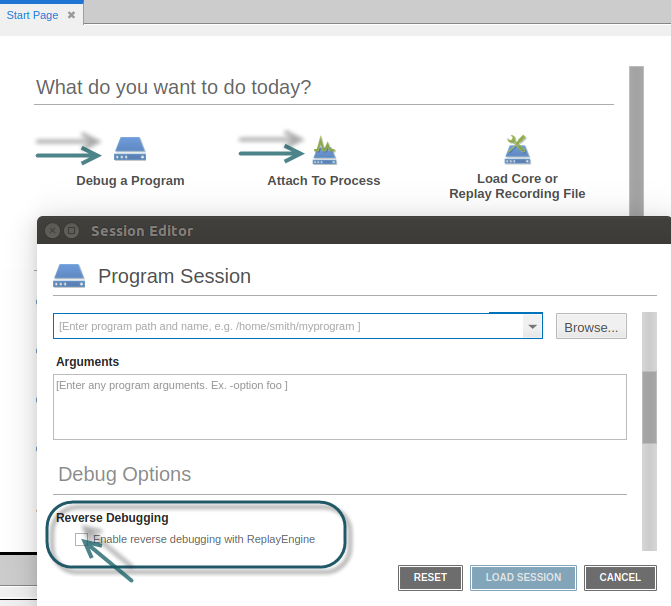
For a program already under TotalView control, you can use the Command Line view to enter the dattach command with the -replay option.
dattach -replay program-path
For a new program, ReplayEngine begins recording instructions as soon as you begin executing the program. For a running process to which you have attached, ReplayEngine starts recording the next time you restart the process.
Enabling and Disabling ReplayEngine for a Loaded Program
Once a program is loaded into TotalView, enable and disable replay via several options.
Enabling Replay
Replay behavior differs depending on whether or not program execution has begun.
The program is not yet executing
If the program is loaded but has not started executing, enable ReplayEngine in any of the following ways:
-
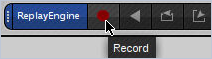
Click the Record toolbar button
-
Select the Debug > Enable ReplayEngine menu item
-
Execute the CLI command dhistory -enable
ReplayEngine begins recording when the process starts executing. If you restart the process, ReplayEngine begins recording from the beginning of process execution.
To stop recording, exit the program and explicitly disable ReplayEngine. You cannot turn replay off while a process is executing.
The program is executing but halted
If a process is already executing and stopped, you can immediately enable replay with any of the methods used when your program is not yet executing — but replay will then be enabled only while the program executes that single time. At process exit and restart, ReplayEngine will no longer be enabled unless you explicitly re-enable it.
Enabling ReplayEngine during program execution also means that you cannot step backward beyond the point at which ReplayEngine was enabled.
Disabling Replay
You cannot disable ReplayEngine for a process that is executing. You must:
-
Kill the executing process.
-
Disable ReplayEngine either by
-
Clicking the Record button or de-selecting the Debug > Enable ReplayEngine menu item, both of which are toggles.
-
Entering dhistory -disable in a CLI prompt focused on the process.
-
If you now restart the process, ReplayEngine will be disabled for the executing process.
After killing the process, you can also return to the Start Page, click the Edit option for your most recent session (the pencil icon), and then de-select the Enable reverse debugging with Replay Engine option in the resulting dialog.